
Results access and Results release
I gave someone Results access, but they still cannot see the results. Why?
Granting Results access does not automatically release results to a coordinator.
To give a coordinator access to results, check both:
- The coordinator has Results access to the relevant groups.
- The survey’s Results release settings release the results to that coordinator.
Also check:
- The release date has passed.
- The coordinator is included in the correct release phase.
- The survey is not configured as Response rate only.
- The coordinator’s access has not been removed from the survey.
For more information, see Understanding coordinator roles and access.
Why can I not add a coordinator to a Results release phase?
The coordinator must first have Results access for the specific survey.
Add the coordinator under the survey’s Results access settings before adding them to a custom Results release phase.
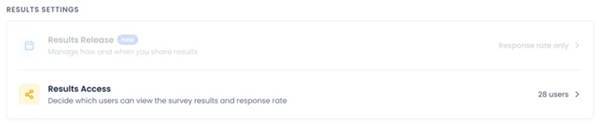
Why can I not add coordinators when creating a new phase?
You must first create and save the phase.
- Select + Add phase.
- Enter a name for the phase.
- Save the phase.
- Open the phase and add the coordinators.
For more information, see Results Release settings.
What is the difference between a new phase and “All remaining users with access”?
Both options are used to release results to coordinators, but they work differently.
New phase
A New phase is a custom release phase. You can choose:
- The phase name.
- The release date.
- Whether to send an email notification.
- Which coordinators are included.
Custom phases are intended for coordinators, not survey participants.
All remaining users with access
All remaining users with access is a predefined phase. It automatically includes coordinators who:
- Have Results access to the survey.
- Have not already been included in another release phase.
This phase must be placed after the other phases, because it acts as a final catch-all group. You cannot manually edit the users included in this phase.
If this phase is active, coordinators added later who have Results access to the survey are automatically included in the release.
I removed a coordinators Results access from a survey. Do I also need to remove them from the Results release?
No.
When a coordinators Results access is removed from the survey, they are immediately removed from all Results release phases for that survey, including custom phases. They can no longer access the survey results.
If you removed the coordinator by mistake, you must restore both:
- Their Results access to the survey.
- Their inclusion in the relevant Results release phase.
The exception is All remaining users with access. Coordinators with Results access are automatically included in that phase.
Why can a coordinator see the response rate but not the results?
Response rate access and results access are governed by different rules.
A coordinator may be able to see the overall survey response rate while only having Results access to specific groups. They may also see the response rate before the results have been released to them.
Possible reasons include:
- The survey is configured as Response rate only.
- The coordinator is included in a future release phase.
- The results have not been released yet.
- The coordinator has Results access only for selected groups.
Check the survey’s Results access and Results release settings.
Good to know: Groups may be visible in the response overview by default, even when the coordinator cannot view their results. Contact your Customer Success Manager if this setting needs to be adjusted.
For more information, see Results Access Settings, Results Release Settings, and Platform permissions per coordinator role.
Why can’t I see my group’s results when the response rate is high enough?
A high response rate does not always mean that results can be displayed.
Effectory’s confidentiality rules also consider the relationship between groups in the organizational structure. Results may remain hidden if showing them could make it possible to derive individual responses from related groups. This is known as the sibling rule.
Check that:
- You have Results access to the group for the specific survey.
- The results have been released to you.
- The group meets all confidentiality requirements.
- The sibling rule does not prevent the results from being displayed.
For more information, see Confidentiality and the number of respondents.
Giving participants access to results
How do I give participants access to the results?
To give participants access to results, configure the survey’s Results release settings.
- In My Effectory, go to Projects.
- Open the relevant project.
- In the Survey status tile, select View all surveys.
- Select the running or completed survey.
- Go to Results settings → Results release.
- Choose how to release the results:
- Select Release to everyone to share results with all eligible users, including participants through Your Feedback.
- Select Phased release to selected users and make sure the Participants phase is configured and scheduled correctly.
Participants can access Your Feedback:
- After completing the survey.
- Through the notification email sent when results are released.
- By going to my.effectory.com, opening the Personal Portal, and using the email address provided by their employer.
Participants who were invited using printed invitations cannot access Your Feedback because an email address is required.
What can participants see?
Participants can always view their own survey answers.
Depending on your organization’s settings, participants may also see:
- Their scores.
- Comparisons with their team.
- Comparisons with the organization.
- Comparisons with benchmark results.
These additional insights may not be available when:
- The results have not been released.
- The survey is still open.
- Results sharing is disabled.
- The participant is not eligible for the relevant results.
Confidentiality rules still apply:
- Individual answers are not shared as identifiable responses.
- Results are presented as group scores.
- Separate group results are not shared when fewer than five people respond.
- Open-text answers may appear exactly as written. Participants should avoid including identifying details in their comments.
Removing coordinator access
Can I remove coordinators in bulk?
Yes. Use the bulk removal process on the Roles & responsibilities page.
For more information, see How to bulk remove coordinators.
Can I remove coordinators through the Excel import?
No. The Excel import supports adding and updating coordinators only.
To remove coordinators, use Editing or removing coordinators or How to bulk remove coordinators.
Does removing a coordinator affect surveys that have already been completed?
It depends on where you remove the coordinator.
Removing a coordinator at project level
If you remove a coordinator at project level, for example from Group coordinators, the change affects surveys that have not yet inherited those settings.
The coordinator retains access to surveys where access was already established, including completed surveys, unless you explicitly remove their access at survey level.
Removing a coordinator from a specific survey
If you remove a coordinator from a survey’s Results access settings, the change applies only to that survey.
You can do this for running and completed surveys to revoke the coordinator’s access to that survey’s results.
In short:
- Project-level changes affect future survey access.
- Survey-level Results access settings control access to an individual survey.
- Removing a coordinator at project level does not automatically remove their access to completed surveys.
For more information, see Linking Group Coordinators manually and Results Access Settings.
Why did removing a coordinator not remove their access to a completed survey?
A project-level change does not automatically remove access from surveys that are already running or completed.
To revoke access to a specific running or completed survey:
- Open the survey.
- Go to Results access.
- Remove the coordinator from the relevant groups.
For more information, see Linking Group Coordinators manually and Results Access Settings.
Coordinator roles and navigation
What is the difference between a Local coordinator and a Results access coordinator?
A Local coordinator can:
- Create surveys.
- View results for the groups to which they are linked.
A Results access coordinator can:
- View results for the groups to which they are linked.
- Not create surveys.
For more information, see Coordinator roles in My Effectory and Platform permissions per coordinator role.
Can Central and Project coordinators do the same things?
No.
A Central coordinator has unrestricted access across the entire account.
A Project coordinator has full access only within the projects to which they are assigned.
For more information, see Platform permissions per coordinator role.
Why does the Local coordinator’s navigation look different from the navigation described in an article?
Some support articles describe the navigation used by Central or Project coordinators.
Local coordinators may access the same settings through a different path. For example, they may need to select Manage result access from the three-dot menu on a survey instead of opening the settings through the project.
The available navigation depends on the coordinator’s role and permissions.
Coordinator linking and selection
If I change coordinator linking, does it affect surveys that are already running?
No.
Changes to coordinator linking apply to future surveys only. They do not affect surveys that are:
- Completed.
- Currently running.
- Starting within the next two hours.
For more information, see Coordinator linking settings.
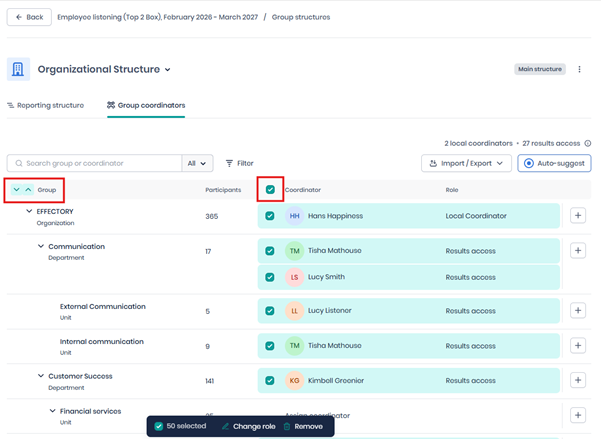
Why did the coordinator checkbox not select everyone?
The coordinator checkbox selects only the coordinators within hierarchy levels that are currently expanded.
To select coordinators across the full hierarchy:
- Expand every level of the hierarchy.
- Select the coordinator checkbox at the top.
Why can a coordinator who only has access to their own group see the response rate for the whole company?
Response rate visibility and results visibility are controlled by different rules.
A coordinator may have access to the overall survey response rate while having Results access only to specific groups. Seeing the overall response rate does not give the coordinator access to the results for the entire organization.
Results visibility is determined by:
- The coordinator’s Results access settings.
- The survey’s Results release settings.
- The coordinator’s role and permissions.
For more information, see Results Access Settings, Results Release Settings, and Platform permissions per coordinator role.