
This article explains how to download printable invitations for participants who do not have an email address in your employee file. Printable invitations are part of the non-desk worker bundle. If you need more information, please contact your Customer Success Manager.
Before you start
- Your survey must be created and planned in My Effectory.
- The participants without an email address must be in your employee file
Important: when are invitations available?
Printable invitations are generated automatically around 2 hours before the survey starts. Until then, the button Use printable invitations on the survey overview page is greyed out for planned surveys.
If you need invitations earlier, you can generate them in advance (up to 2 hours before the survey starts). For more information, check Generate printable invitations in advance.
Download printable invitations
- Open your survey in My Effectory.
- Go to Participants.
- Click Use printable invitations.
- Choose one of the two options:
- Download and hand out myself
- Send link to coordinators for download and handout
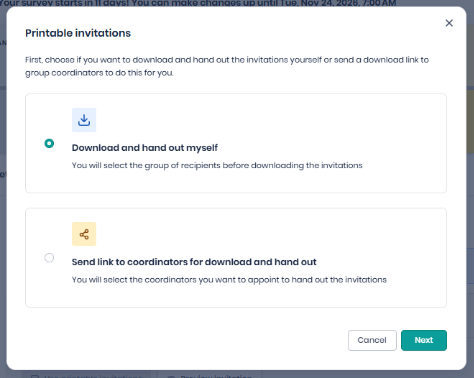
Option A: Download and hand out yourself
- Select the group or groups you want to download invitations for, and click Download.
- The invitations are downloaded as a .zip file to your browser. You can find the file in your Downloads folder.
Option B: Send link to coordinators for download and handout
- Go through the reporting structure. At the top level, and at lower levels where applicable, select the coordinator you want to share the invitations with.
- Click Review & Confirm.
Please note: printable invitations can only be shared with Local Coordinators who have been assigned beforehand on the group coordinators page. For more information, see Linking group coordinators manually.
Printing tips
The download is a .zip file containing folders with PDF invitations. The folders follow your group hierarchy. To print all invitations at once:
Important: Handle printable invitations with care. Hand them out personally to the correct employee before the survey starts.
Changes after you have generated invitations
If employee data changes after you generated invitations, see Generate printable invitations in advance for guidance on updating invitation files and on how login codes are affected.
Adding participants after the survey has started
If you add participants without an email address after the survey has started, a pop-up appears in My Effectory. You can choose to:
- Add and download invitations immediately, or
- Download invitations later via My Effectory. My Effectory shows which groups still need invitations.
For more information, see Adding or removing participants from a running survey.