
This article is part of Effectory's resources on the results dashboard. For a video on how to use the dashboard, please refer to this article.
Are you using Top 2 Box? Please be informed that your scores will look different. For more information, please click here.
The Effectory Action Planner supports effective follow-up by guiding you through a clear workflow to turn survey insights into tangible action.
You can select the results or focus areas that need attention, select a goal, and create an action that supports and complements that goal. The goal captures what you intend to do; the action turns that goal into a concrete next step.
We recommend creating an action whenever your follow-up requires a specific activity, so that it can lead to tangible progress.
How does it work?
The Action Planner workflow can start in two ways:
- From the Overview on the results dashboard, pin an interesting or relevant score.
- From Focus View, choose a focus area that you want to follow up on.
Both entry points take you into the same workflow, where you select a goal for the selected result or focus area and create an action to support it.
1. Start from Focus View
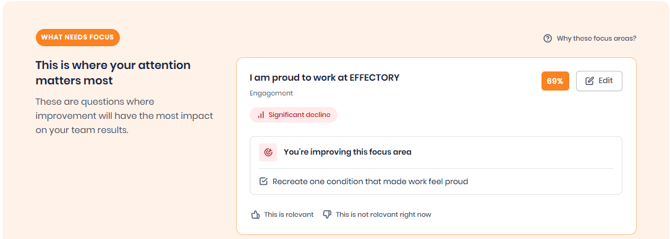
In Focus View, select the focus area you want to follow up on.
→ The Action Planner workflow opens for the selected focus area, where you can select a goal and create an action to support it.
2. Or start by pinning an interesting or relevant score
You can also pin interesting or relevant scores in the results dashboard overview. To pin an item, select the pin button in one of these locations:
- Overview: In the top right of each tile
- Scores: When you hover over the question
- Topics & Ideas: In the top right of each tile. Topics can be pinned individually.
- Themes: In the top right of each theme tile
When you select the pin button, a pop-up window appears showing what you are pinning and the respective score. From there, you enter the Action Planner workflow for the pinned item.
3. Select one goal per selected item or focus area
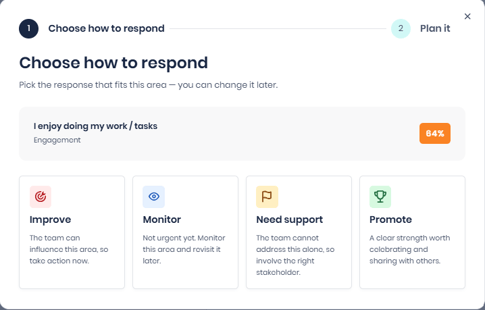
You must select one goal for each selected item or focus area. Choose the goal that best describes your intended follow-up:
- Improve: Choose this when you want to improve the focus area. Suggested actions may be shown, and you can create a suggested or own action to support the decision.
- Monitor: Choose this when you want to keep the focus area under review. You can add context or explain your reasoning. This replaces the previous Contemplate goal.
- Need Support: Choose this when support from another person or group is needed. Add an explanation and identify who is best placed to support.
- Promote: Choose this when you want to reinforce the focus area. You can add context or explain your reasoning and identify who is best placed to support or assign the follow-up.
4. Add context where needed
You can add context to explain your goal. Additional context is especially useful when you choose Monitor, Need Support, or Promote.
5. Create an action to support your goal
When you choose Improve, suggested actions may be available. Create a suggested or own action to turn your goal into a specific, tangible next step.
Creating an action supports and complements the goal: the goal records what you intend to do, while the action captures how that intention will be put into practice.
We recommend creating an action whenever your follow-up requires a specific activity.
6. Review your goals and actions
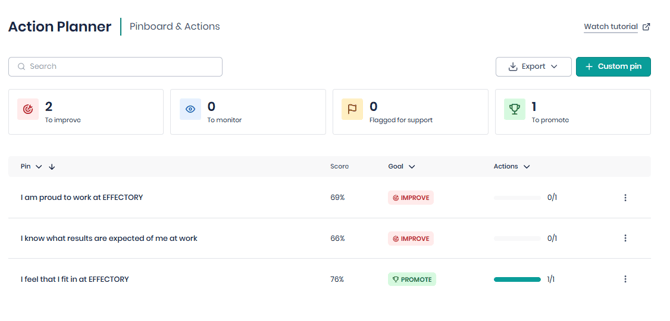
Your selected focus areas and goals appear on the Actions tab.
Action Planner export
The Action Planner export provides HR, HRBPs, coordinators, and high-level managers with visibility into goals and actions.
There are two types of Action Planner export:
- Current group export: Provides the action-planning information for the group currently selected in the results dashboard.
- Underlying groups export: Provides the action-planning information for the groups below the selected group. For HR, this export is available at the root level and provides visibility into the actions created across the rest of the organisation.
When you select Export, an Excel file is downloaded for the relevant group level. Depending on the available data, the export can include:
- The goal recorded for each focus area
- Context or explanations added by the manager
- Relevant groups and teams
- Existing action information, where an action has been created
- Basic information such as the group, survey, and measurement name
Groups and sub-groups with no actions should remain visible in the export. They must not be silently dropped from the report.
Please note that the Action Planner export provides the available action-planning information for review and reporting. The exact fields and tabs may vary depending on your account configuration.
Action Planner capabilities
The Action Planner lets you:
- Select relevant results or focus areas for follow-up
- Record one goal per selected item or focus area
- Add context or reasoning where relevant
- Create an action that supports and complements the follow-up decision
- Review pinned items, focus areas, decisions, and actions on the Actions tab
- Export action-planning information for review and reporting
Please note that actions are visible to everyone with access to the respective group/teams. If you are a coordinator with access to more than one team, you will see the actions for all teams, made by all users.